Video Maker
Turn a property's photos into a short Just Listed, Just Sold, Open House or other video with your name at the end. AI can write the captions and a voiceover.
Open the Video MakerStep by step
- 1
Pick the property
Pick the client and property. Its photos come in on their own. You need a picked property to make a video.
- 2
Set the photos
Add or remove photos, up to 20. Star a photo to open the video with it.
- 3
Pick the news
Choose Just Listed, Just Sold, Open House, Coming Soon, Price Reduced, Under Contract or For Rent. Add the date and time for an open house.
- 4
Add words and voice
Tell the AI about the home and click Write captions & script. Turn on the voiceover, pick a voice, click Hear it, and edit the lines.
- 5
Make the video
Pick the layout, style, size and music. Set your state. Then click Make the video (it names the type, like Make the Just Listed video) and Download video when it's done.
Look and sound
The preview updates as you change things.
- Layouts: Lower third, Title card, Split panel, Photos only
- Styles: Modern, Classic, Bold, Minimal
- Sizes: Reels/TikTok 9:16, Feed 1:1, YouTube 16:9
- Music, a badge, seconds per photo and a closing line
Rendering
The video is made in your browser. You can move around the dashboard while it renders, but closing the tab stops it.
You get an MP4 where your browser supports it, or WebM. Downloading also saves it to your library under the property.
Questions
Which plan is it in?
Plus. Premier and Partner include it too. Partner includes everything on the site, and it's free when you join eXp with Techy Broker as your sponsor. See pricing.
Why is the button greyed out?
You need a picked property, at least one photo and your state set. The state adds the advertising line it requires.
Do I have to use the voiceover?
No. It's optional. Music plays under the voice when both are on.
Where are my videos?
In your content library, and on the tool's Results tab. Pick Drafts there for work in progress.
Related
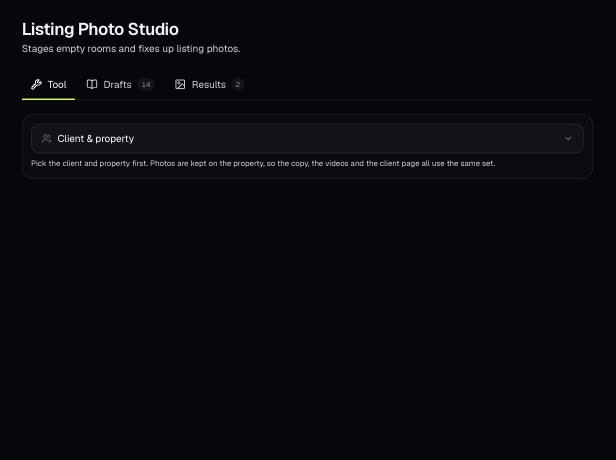
Keep a property's photos in one place, fix them with AI (stage, declutter, twilight and more), and fill in finished social graphics from them.
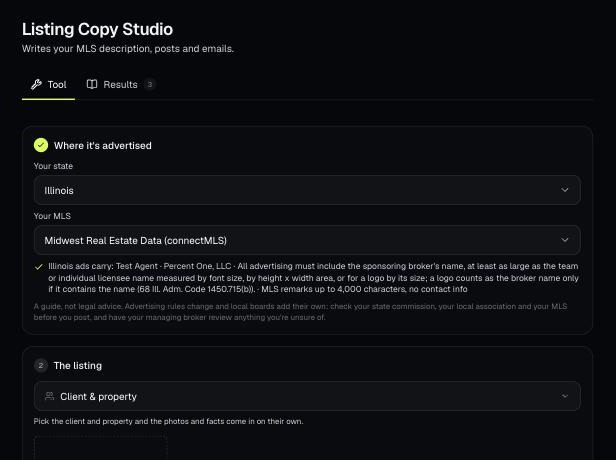
AI looks at the listing photos and facts and writes the MLS remarks, social posts, a text and an email. It's written to follow fair housing, your state's ad rules and your MLS's remarks rules.
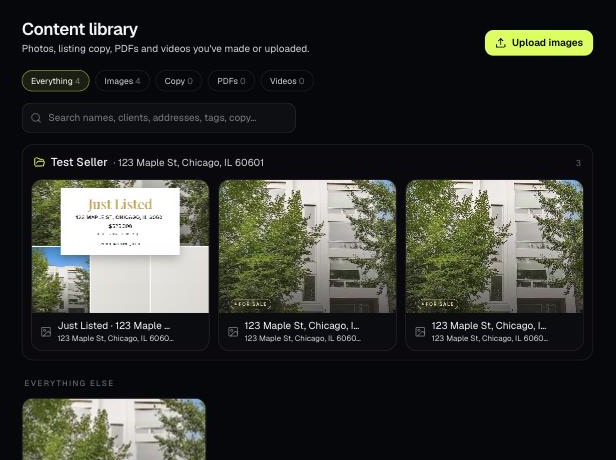
The Content library holds the photos, listing copy, PDFs and videos you've made or uploaded. Items tied to a client and property are grouped into folders.
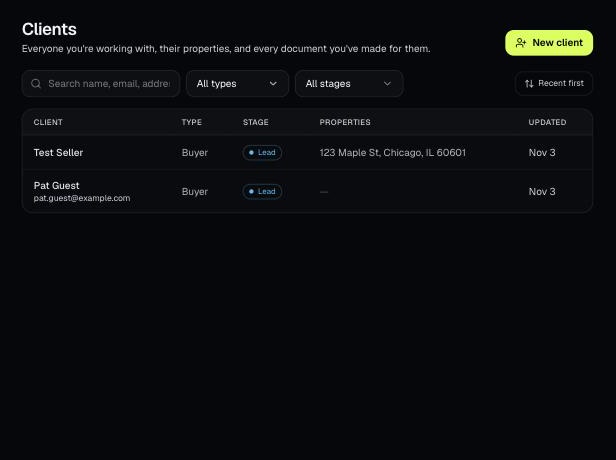
Tools that act on a property use one menu to pick a client and then one of their properties. There's no address box to type into; you pick, or add, from the menu.