Listing Photo Studio
Keep a property's photos in one place, fix them with AI (stage, declutter, twilight and more), and fill in finished social graphics from them.
Open Listing Photo StudioStep by step
- 1
Pick the property
Pick the client and property first. Photos are kept on the property in your content library.
- 2
Add photos
On Photos, click Add photos. Upload them, pick from your library or pull them from a listing link.
- 3
Enhance a photo
Click a photo to open it. Pick an enhancement or describe your own edit and click Go. Each one takes about 10 to 30 seconds.
- 4
Save it
Save over the original or save it as a new photo on the property. Until you save, your edits are kept as a draft.
- 5
Make a graphic
Click Templates. Pick a size and template, choose photos and a headline like Just Listed, then click Download PNG or Save to library.
AI enhancements
Each step works on the photo as it is right now, so you can stack them.
- Virtually stage an empty room
- Declutter
- Empty the room
- Brighten
- Twilight
- Blue sky
- Green lawn
Templates
Sizes are Square, Portrait and Story. The address, price and details fill in from the property and your brand. Change the headline, fonts and accent color as you like.
Disclose your edits
Disclose virtual staging and edited skies in your listing.
Questions
Which plan is it in?
Plus. Premier and Partner include it too. Partner includes everything on the site, and it's free when you join eXp with Techy Broker as your sponsor. See pricing.
Do other tools see these photos?
Yes. Listing Copy, the video maker and the client page all use the same photos on the property.
Where are photos I was in the middle of editing?
On the Results tab: pick Drafts. Click one to reopen that photo with the work so far.
Can I download several at once?
Yes. Select photos with the checkbox, or Select all, then click Download.
Related
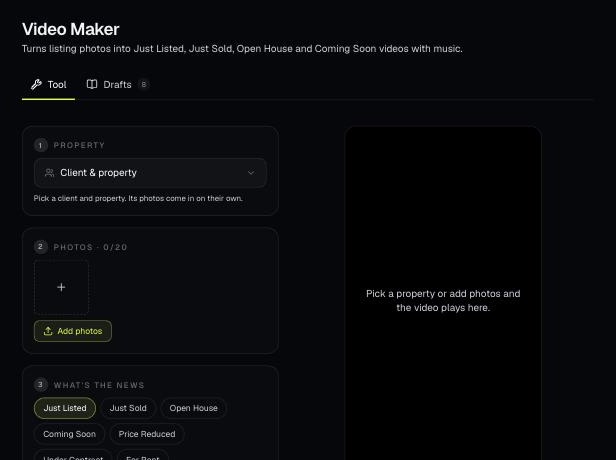
Turn a property's photos into a short Just Listed, Just Sold, Open House or other video with your name at the end. AI can write the captions and a voiceover.
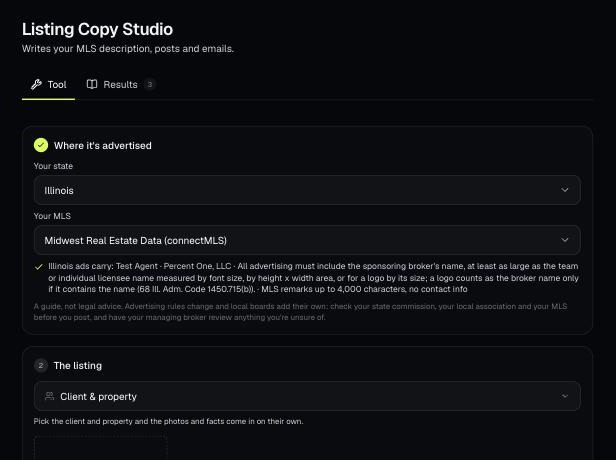
AI looks at the listing photos and facts and writes the MLS remarks, social posts, a text and an email. It's written to follow fair housing, your state's ad rules and your MLS's remarks rules.
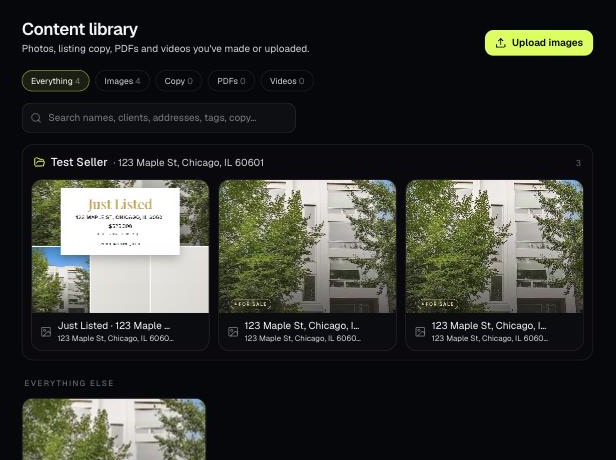
The Content library holds the photos, listing copy, PDFs and videos you've made or uploaded. Items tied to a client and property are grouped into folders.
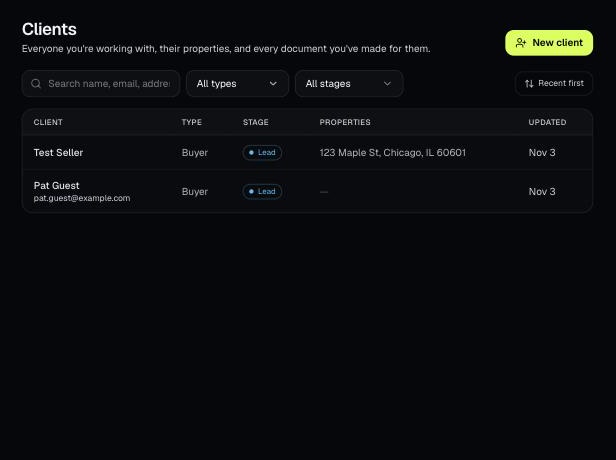
Tools that act on a property use one menu to pick a client and then one of their properties. There's no address box to type into; you pick, or add, from the menu.