The client & property picker
Tools that act on a property use one menu to pick a client and then one of their properties. There's no address box to type into; you pick, or add, from the menu.
Open ClientsStep by step
- 1
Open the menu
Click the box labeled Client & property at the top of the tool.
- 2
Find the client
Type in Find a client or address to search. Each client shows how many properties they have.
- 3
Pick the property
Hover or click a client to see their properties, then pick one. A client with just one property is picked in one click.
- 4
Add what's missing
Click Add a client at the bottom of the menu, or Add a property in a client's list. What you add is picked for you.
- 5
Clear it
Click the x in the box to clear the client and property and start again.
Adding a property from the picker
The New property form asks for the address, whether they're selling, buying, own or rent it, and optional price, beds, baths and square feet. Tools prefill from these.
Why it works this way
Picking a property ties everything you make to that client and that home. PDFs, drafts and saved files then show up on the client's page and in the right folder in your Content library.
Opening a tool from a client
If you open a tool from the buttons on a client's property, the picker starts with that client and property already chosen.
Questions
Where do I type the address?
You don't type it in the tool. Pick the client and property, or use Add a property in the menu to add the address there.
Do calculators need a client?
No. On calculators the picker is optional. If you pick one, the PDF is saved to that client.
Which tools need a property?
Tools that research or market a home need one. The video maker, for example, won't run without a picked property.
Related
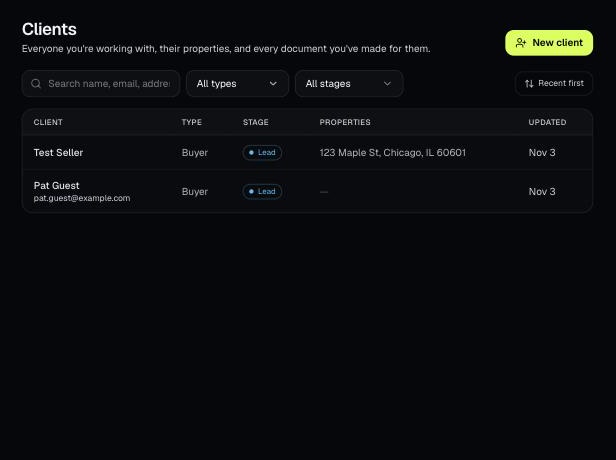
Clients holds everyone you work with, their properties, and every document you've made for them. Tools open prefilled from a client's property.
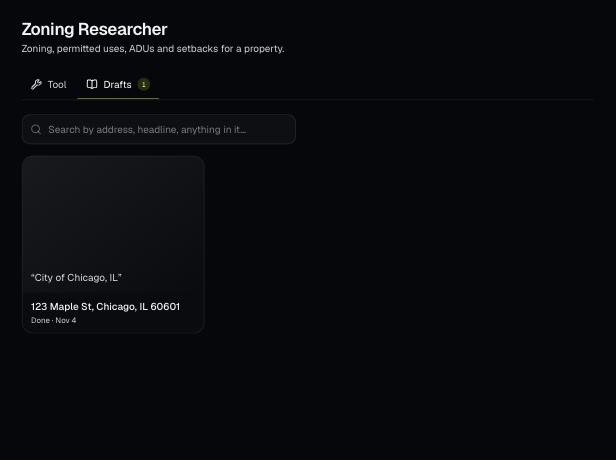
Tools save your work as you go, and AI tools keep running after you leave the page. Find both on the tool's Results tab and in the jobs indicator in the top bar.
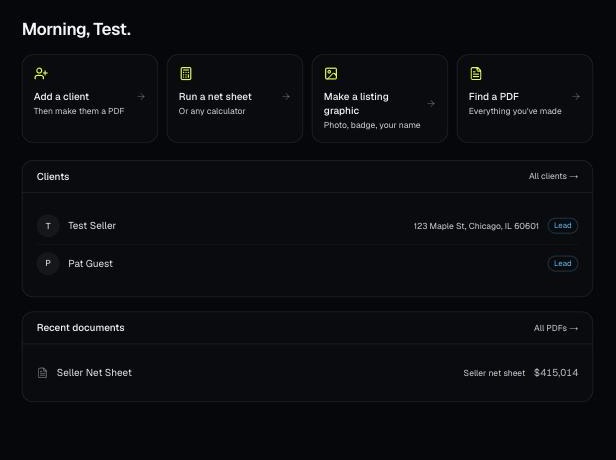
Every PDF you download is saved, so you can preview it, download it again with your current brand, or reopen it with the same numbers.