Results and PDFs
Every PDF you download is saved, so you can preview it, download it again with your current brand, or reopen it with the same numbers.
Open HistoryStep by step
- 1
Download a PDF
In any calculator or tool, pick the client and property if you like, then click Download branded PDF.
- 2
Find it on the tool
Open the tool's Results tab to see every PDF it made, along with its drafts and runs.
- 3
Find every PDF
On Home, click Find a PDF or All PDFs to open History. Search by client, address or result.
- 4
Preview or download again
Click the eye to preview, or the download button to make the PDF again with your current brand.
- 5
Reopen with the same numbers
On a calculator's Results tab, click a card to open the calculator with those inputs.
Where PDFs are saved
PDFs you download are listed in History and on the tool's Results tab. If you picked a client, the PDF is also under Documents on their page and under the property.
PDFs your clients download
PDFs clients download from your branded page are separate. They show in Activity with a View PDF button.
Sharing PDFs with a client
To send a client everything at once, make a client portal from their page. It holds the documents you've made for them.
Questions
I changed my headshot. Can I update old PDFs?
Yes. Download them again from History or the Results tab and they use your current brand.
How do I delete a PDF?
Click the trash icon on it in History, the Results tab or the client's Documents.
Why don't I see a Results tab yet?
It shows once there's something in it: a draft, a run, a PDF or a saved photo.
Related
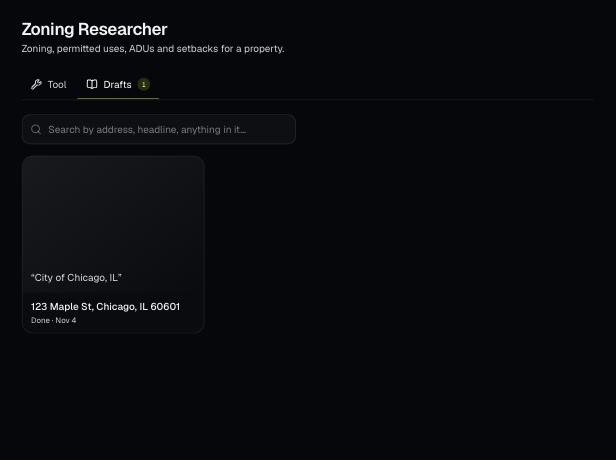
Tools save your work as you go, and AI tools keep running after you leave the page. Find both on the tool's Results tab and in the jobs indicator in the top bar.
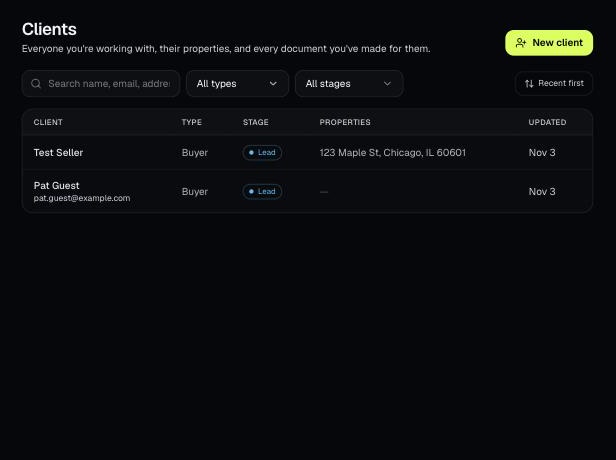
A client portal is a private, expiring link with every document you've made for one client, branded to you. It's on every plan, including Basic.
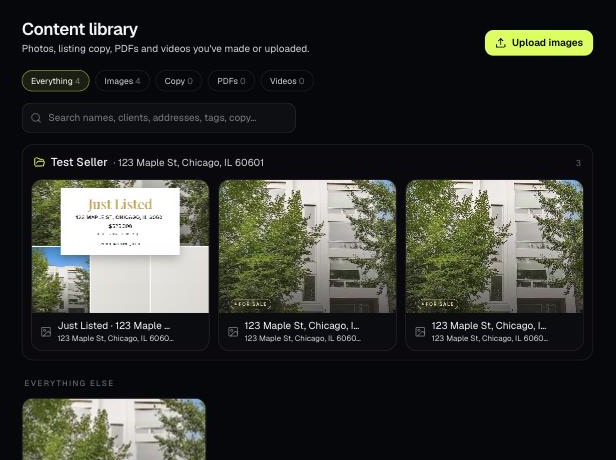
The Content library holds the photos, listing copy, PDFs and videos you've made or uploaded. Items tied to a client and property are grouped into folders.