Client portal
A client portal is a private, expiring link with every document you've made for one client, branded to you. It's on every plan, including Basic.
Open ClientsStep by step
- 1
Open the client
Go to Clients and click the client's name. Scroll to the Client portal panel.
- 2
Pick how long it works
Under Works for, choose 7, 14, 30 or 90 days.
- 3
Add a password if you want
Type a password, or leave it blank for a link-only page. Inspection findings and walkthroughs only show on password-protected links.
- 4
Make the link
Click Make the link. It's copied for you, and you can copy or open it again from the list.
- 5
Send it
Send the link to your client, and the password separately if you set one.
What your client sees
A page with your name, photo and contact info, then Prepared for and their name. Documents are grouped by property, each with its headline number, date, and Open and Download buttons.
PDFs are built with your brand when the client opens them. The page says when the link stops working.
Updating and turning off links
A link holds the documents that existed when you made it. After you add more, make a new link.
Click the trash icon next to a link to turn it off. Expired links tell the client to ask you for a fresh one.
Before you start
Set up your brand first. The portal needs it to carry your name.
Questions
Can I have more than one link for a client?
Yes. Each live link shows in the list with its document count and end date.
What if my client forgets the password?
Make a new link with a new password and turn off the old one.
Is the portal on the free plan?
Yes. Client portals are part of Basic.
Related
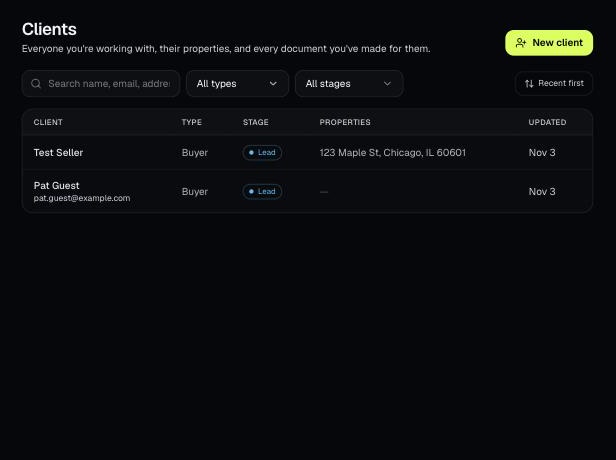
Clients holds everyone you work with, their properties, and every document you've made for them. Tools open prefilled from a client's property.
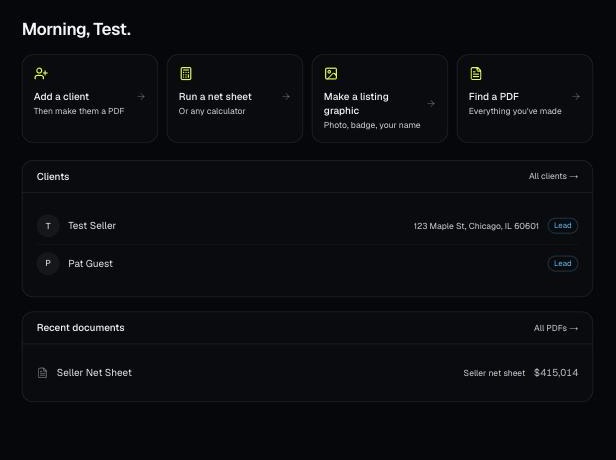
Every PDF you download is saved, so you can preview it, download it again with your current brand, or reopen it with the same numbers.
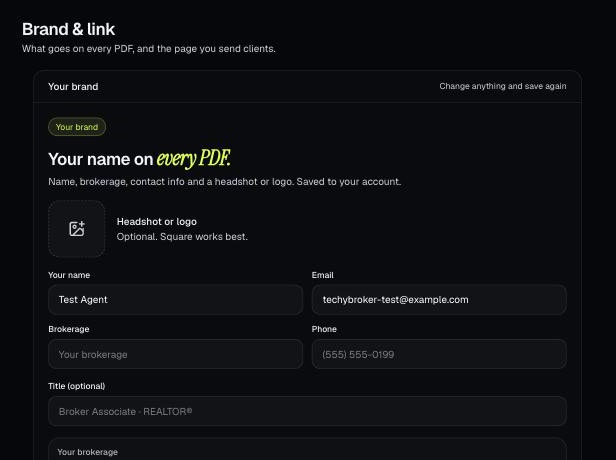
Your brand is the name, photo, contact info, color and font that go on every PDF. It also sets your branded link.