Content library
The Content library holds the photos, listing copy, PDFs and videos you've made or uploaded. Items tied to a client and property are grouped into folders.
Open the Content libraryStep by step
- 1
Open the library
Click Content library in the sidebar.
- 2
Upload images
Click Upload images to add listing photos. You can pick several at once.
- 3
Save from a tool
Tools that make copy, images, PDFs or videos have a Save to library button. Some save there for you.
- 4
Filter and search
Click Everything, Images, Copy, PDFs or Videos. Search by name, client, address, tag or the text of saved copy.
- 5
Open an item
Click an item to preview it. Click its name to rename it, add tags, download it, copy the text or delete it.
Folders
Anything made for a client and property goes in a folder named for that client and address. Everything else sits under Everything else.
Team libraries
If you're on a team, you can switch between your own library and the team library at the top. Save to library then lets you pick which one.
What you can upload
Only images upload here. PDFs and copy are saved from the tools.
Questions
Can I upload a PDF?
No. Upload only takes images. PDFs land here when you save them from a tool.
How do I copy listing copy I saved?
Click the item's name, then Copy text.
Do client photos show anywhere else?
Yes. Photos and filled forms tied to a property also show on that property in the client's page.
Related
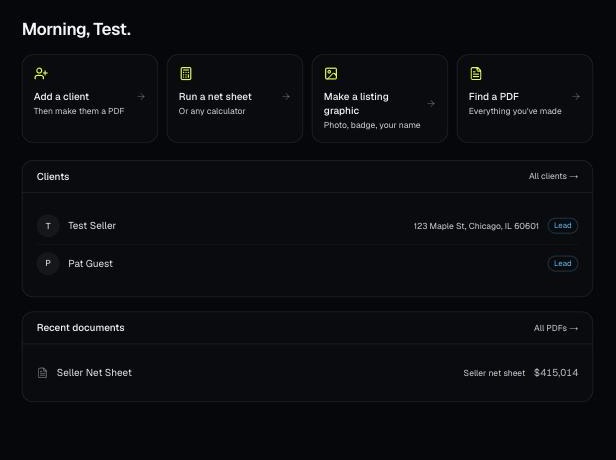
Every PDF you download is saved, so you can preview it, download it again with your current brand, or reopen it with the same numbers.
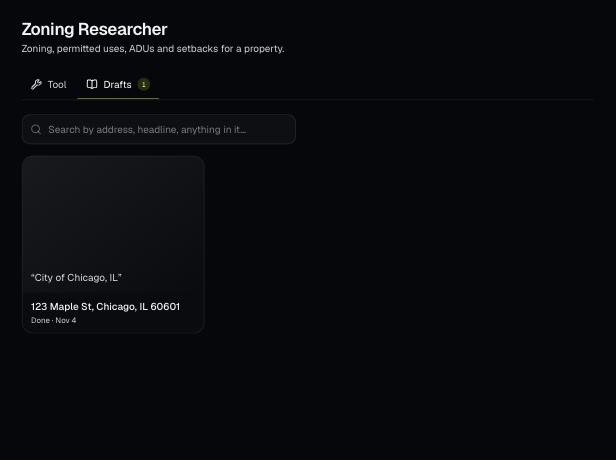
Tools save your work as you go, and AI tools keep running after you leave the page. Find both on the tool's Results tab and in the jobs indicator in the top bar.
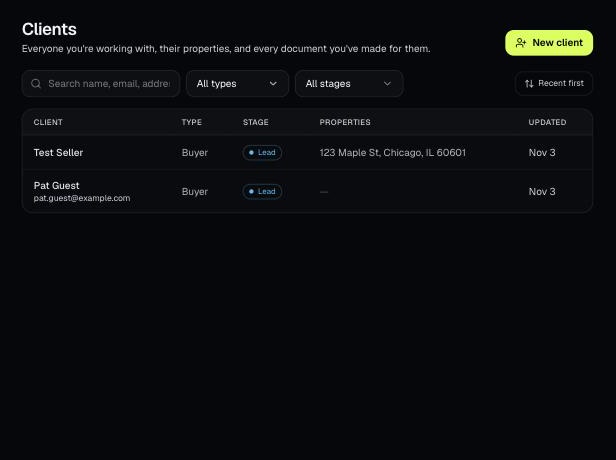
Clients holds everyone you work with, their properties, and every document you've made for them. Tools open prefilled from a client's property.