Testimonial Studio
Paste a client's review and AI pulls exact quotes and writes a website version, short snippets and captions. Then make a branded quote graphic.
Open Testimonial StudioStep by step
- 1
Paste the review
Paste the review exactly as the client wrote it. Add their name or initials, whether they bought or sold, the city and the stars.
- 2
Write the copy
Click Write the copy. It runs in the background, so you can leave or close the page; it saves to Results.
- 3
Copy what you need
You get a pull quote, an email signature line, a website testimonial, short snippets and captions for Instagram, Facebook and LinkedIn.
- 4
Make a graphic
Under Graphics, pick a template and size, pick a quote, and choose fonts, a color, a photo, your headshot or logo.
- 5
Download it
Set your state, then click Download PNG. It also saves to your library.
Keep the client's words
The quotes are pulled straight from the review. If you edit a quote so it no longer matches, the page warns you.
Get the client's OK before using a review in ads.
Templates
Sizes are Square and Story.
- Classic
- Photo
- Accent
- Headshot
- Split
- Minimal
- Dark
- Card
Questions
Which plan is it in?
Plus. Premier and Partner include it too. Partner includes everything on the site, and it's free when you join eXp with Techy Broker as your sponsor. See pricing.
Why can't I download the graphic?
Pick your state first. The graphic prints the advertising line your state requires.
Can I reopen an old one?
Yes. Past runs are on the Results tab.
Related
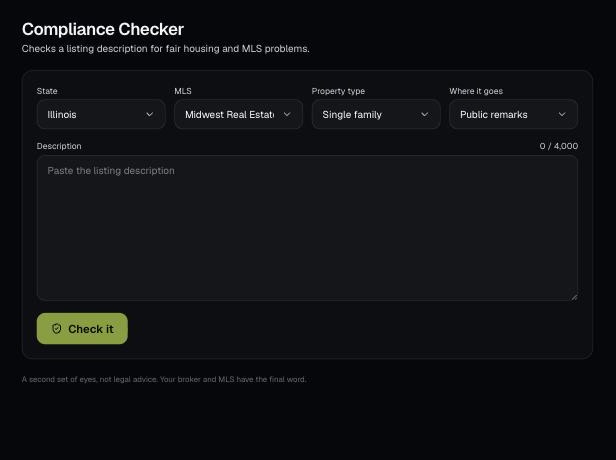
Paste a listing description and it flags fair housing problems, claims you can't back up and MLS rule issues, then writes a clean version.
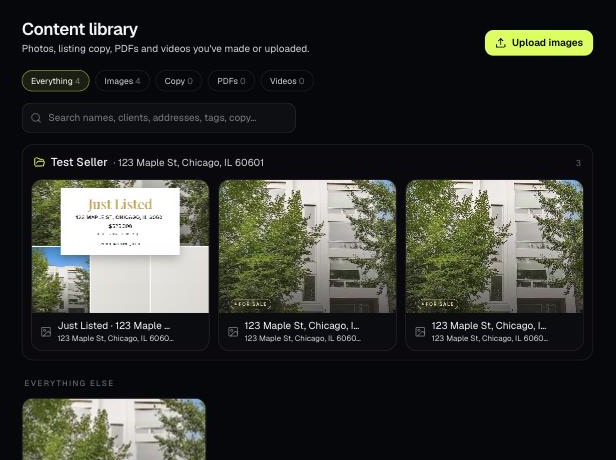
The Content library holds the photos, listing copy, PDFs and videos you've made or uploaded. Items tied to a client and property are grouped into folders.
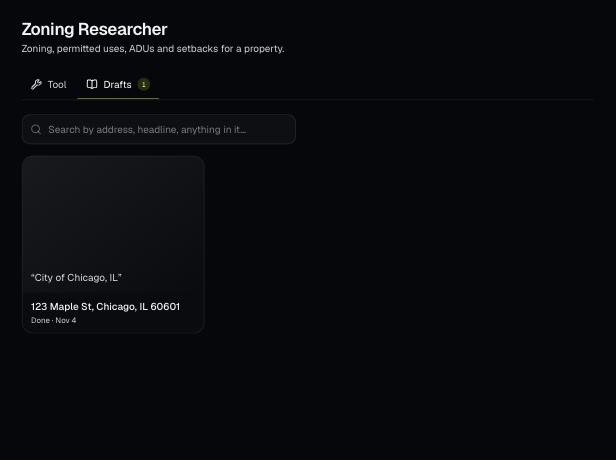
Tools save your work as you go, and AI tools keep running after you leave the page. Find both on the tool's Results tab and in the jobs indicator in the top bar.