Inspection Prep
A prep checklist for each inspection, then AI reads the inspection report into findings with cost ranges and suggested asks. You can share the findings to the client's portal.
Open Inspection PrepStep by step
- 1
Start a new inspection
Click New inspection. Pick the client and property in the Client & property menu, then your side, the date and the time.
- 2
Add the inspector
Add the inspector and anyone else on the deal from your contacts. Then click Make the checklist.
- 3
Work the prep checklist
Tick off each line on the Prep tab. Add your own lines and notes. Copy the checklist if you want to send it.
- 4
Upload the report
On Report & findings, upload the inspection report PDF (under 19 MB). Keep the tab open while AI reads it. Long reports take a minute.
- 5
Set your asks
For each finding, choose Ask for repair, Ask for credit, Monitor or No ask. Add a note if you want. Copy the repair request when you're done.
- 6
Share to the portal
Tick On portal for the findings the client should see. On the Share tab, pick their password-protected portal, enter the password and click Publish to portal.
What you get
A short summary with an overall rating, the big systems with their condition, and a list of findings.
- Findings sorted by Safety, Major, Minor, Maintenance and FYI
- A cost range and the page number for each finding
- A total of what you're asking for
- A repair request you can copy and paste
What the client sees
Only the summary, the big systems and the findings you marked On portal, with your ask and note. They can comment on each finding.
They never see your prep checklist or private notes.
Treat it as a first read
The findings and cost ranges are AI estimates. Check them against the report and get real quotes before you negotiate.
Questions
Can I leave the page while the report is read?
Keep the tab open. Reading the report runs in your browser, so closing the tab stops it. You can upload again or click Read it again.
If I read the report again, do I lose my asks?
No. Findings that match by title keep your ask, note and On portal setting.
I changed an ask after sharing. Does the client see it?
Not until you click Update on portal on the Share tab.
The client has no portal option. Why?
Sharing needs a password-protected portal. Make one on the client's page with a password, then come back.
What happens to the report if I delete the inspection?
The inspection is removed. The report file stays in your library.
Related
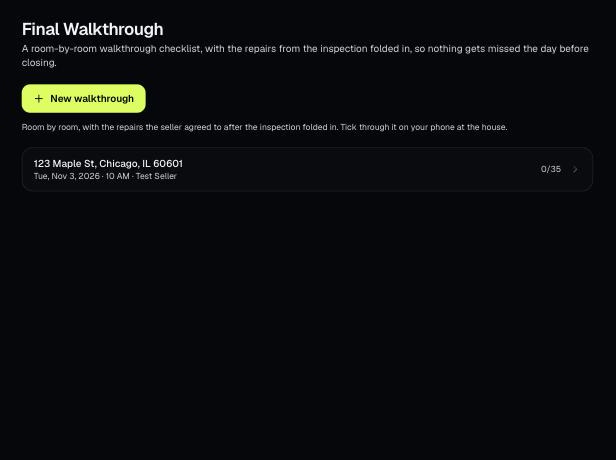
A room-by-room walkthrough checklist with the repairs agreed after the inspection added in. Flag issues as you go and share the list.
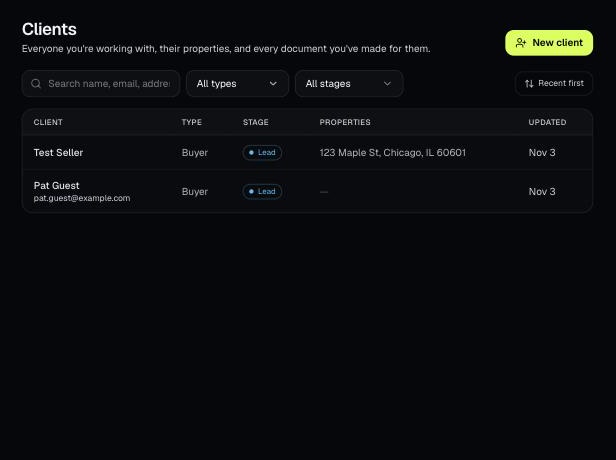
A client portal is a private, expiring link with every document you've made for one client, branded to you. It's on every plan, including Basic.
Tools that act on a property use one menu to pick a client and then one of their properties. There's no address box to type into; you pick, or add, from the menu.
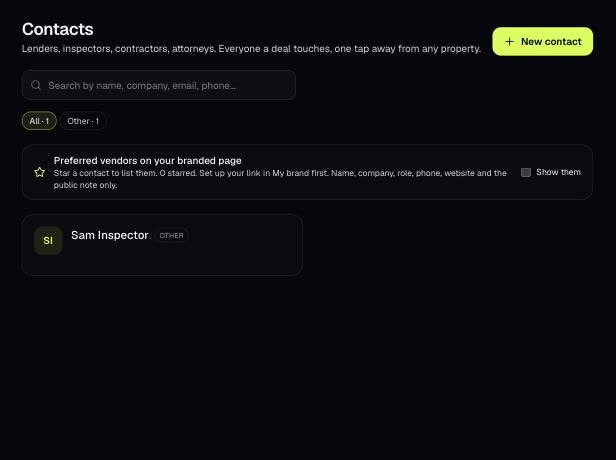
Contacts holds the people your deals touch: lenders, inspectors, contractors, attorneys and more. Attach them to properties and star the ones you recommend.