Final Walkthrough
A room-by-room walkthrough checklist with the repairs agreed after the inspection added in. Flag issues as you go and share the list.
Open Final WalkthroughStep by step
- 1
Start a new walkthrough
Click New walkthrough. Pick the client and property in the Client & property menu.
- 2
Set the dates
Enter the walkthrough date and time, and the closing date. Add anyone involved from your contacts, then click Make the checklist.
- 3
Walk the house
Tick each line as you go. Mark a line as an issue and type what's wrong. Add your own lines if you need them.
- 4
Send the issues
Flagged lines collect in the Issues box. Click Copy the issues list to send it to the other side.
- 5
Share to the portal
On the Share tab, pick the client's password-protected portal, enter the password and click Publish to portal.
Repairs from the inspection
If you used Inspection Prep on the same property, every finding you set to Ask for repair becomes a line to check. If there's no read inspection, you get the standard list.
What the client sees
The whole checklist, what was checked and what was flagged, with your note on each flagged line. They get a comment box to add what they noticed.
Questions
Does this use AI?
No. The walkthrough is a checklist. The agreed repairs come from an inspection you already ran through Inspection Prep.
Can I use it on my phone at the house?
Yes. Open it in the dashboard on your phone and tick through it. Changes save as you go.
Why aren't the inspection repairs on my list?
Only repairs from a read inspection on the same property come in, and only findings set to Ask for repair. Credits and Monitor items are left off.
Related
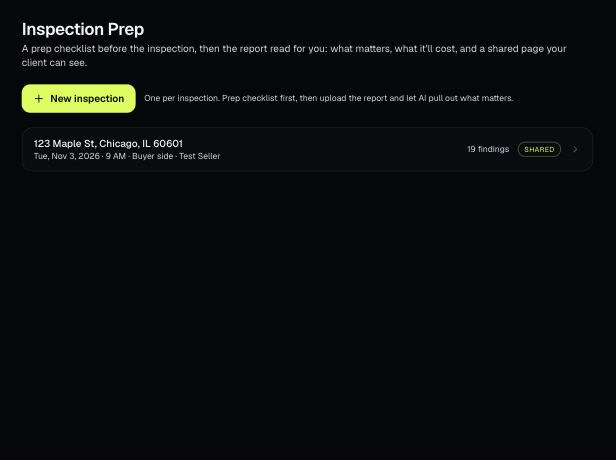
A prep checklist for each inspection, then AI reads the inspection report into findings with cost ranges and suggested asks. You can share the findings to the client's portal.
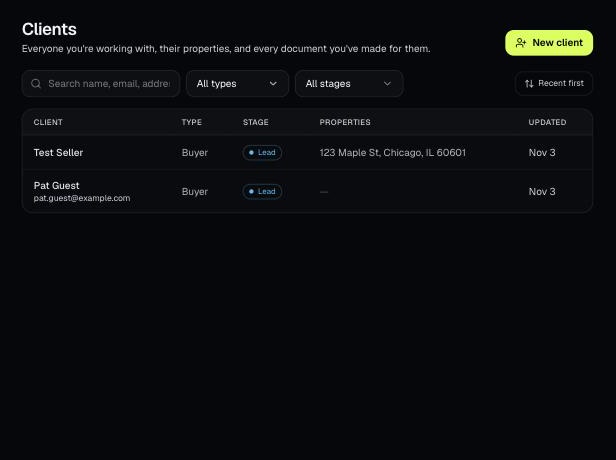
A client portal is a private, expiring link with every document you've made for one client, branded to you. It's on every plan, including Basic.
Tools that act on a property use one menu to pick a client and then one of their properties. There's no address box to type into; you pick, or add, from the menu.