Contacts
Contacts holds the people your deals touch: lenders, inspectors, contractors, attorneys and more. Attach them to properties and star the ones you recommend.
Open ContactsStep by step
- 1
Add a contact
Click New contact. Enter a name and pick a role, such as Lender, Inspector or Title / escrow.
- 2
Fill in the details
Add title, company, phone, email, company phone and email, website and address. Add notes and comma-separated tags if you like.
- 3
Find people fast
Search by name, company, email, phone or tag. Click a role chip to see only that role.
- 4
Attach them to a property
On a client's property, use People on this property to add a lender, inspector or contractor. You can also make a new contact from there.
- 5
Star your preferred vendors
Click the star on a card to mark someone as a preferred vendor. Turn on Show them to list starred vendors on your branded page.
Contact cards
Each card shows the role, title and company, with tap-to-call phone, email and website links. Hover a card to edit, delete or star it.
Roles you can pick
Roles cover the usual trades: lender, inspector, contractor, attorney, title / escrow, appraiser, photographer, stager, insurance, HOA / management, movers, cleaning, handyman, plumber, electrician, HVAC, roofer, landscaping, pest control and other.
Questions
Who can see my contacts?
Only you, except starred vendors when Show them is on. Even then, clients only see name, company, role, phone, website and the public note.
Can tools use my contacts?
Yes. Properties and the inspection and walkthrough tools pick people from your contacts.
How do I delete a contact?
Hover the card, click the trash icon and confirm.
Related
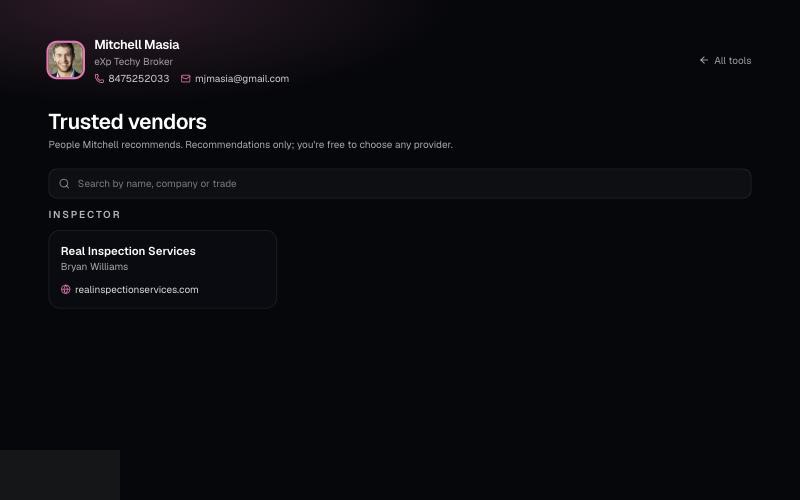
List the lenders, inspectors and contractors you recommend on your branded page. Clients can search them at /b/{handle}/trusted-vendors.
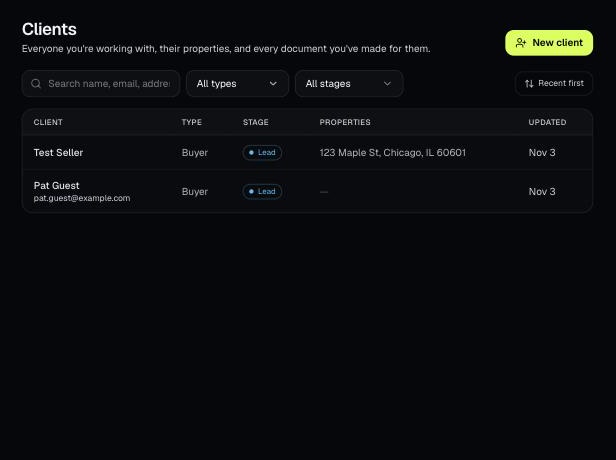
Clients holds everyone you work with, their properties, and every document you've made for them. Tools open prefilled from a client's property.
Tools that act on a property use one menu to pick a client and then one of their properties. There's no address box to type into; you pick, or add, from the menu.