Form Filler
Fill any PDF form on screen: upload your own or pick one from the catalog. Prefill it from the client and deal, type on the page where there are no fields, and download a real PDF.
Open the Form FillerStep by step
- 1
Open a form
Click Upload your own PDF. Or search the catalog by state and kind and open a form from there.
- 2
Pick the client and property
On the right, pick them in the Client & property menu and fill in the deal facts: buyers, sellers, price, earnest money, closing and county.
- 3
Prefill the form
Click Prefill the form. It fills names, address, price, dates and your details into fields it recognizes, and never overwrites what you typed.
- 4
Fill the rest
Type in the fields on the left. If the form has no fillable fields, click Find fields with AI, or use the pen tools to type, check, strike or box right on the page.
- 5
Download the PDF
Turn on Lock fields if nothing should change after you send it. Click Download PDF.
Saving
Every form you start saves as you go. Find it on the Forms in progress tab. Each PDF you download also goes to your library, filed under the client and property.
About the catalog
Members-only forms from your association aren't in the catalog. Get them from the source and upload them here.
Questions
Which plan is it in?
Plus. Premier and Partner include it too. Partner includes everything on the site, and it's free when you join eXp with Techy Broker as your sponsor. See pricing.
What does Find fields with AI do?
It reads each page and adds an input for every blank, checkbox and choice the form didn't make fillable. Check what it found before you send.
What does Lock fields do?
It bakes the answers into the PDF so they can't be changed after you send it.
Can I use my association's forms?
Yes. Download the form from your association and use Upload your own PDF.
Related
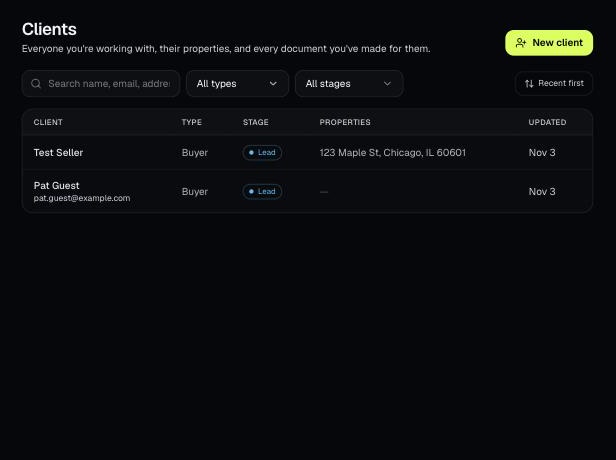
Clients holds everyone you work with, their properties, and every document you've made for them. Tools open prefilled from a client's property.
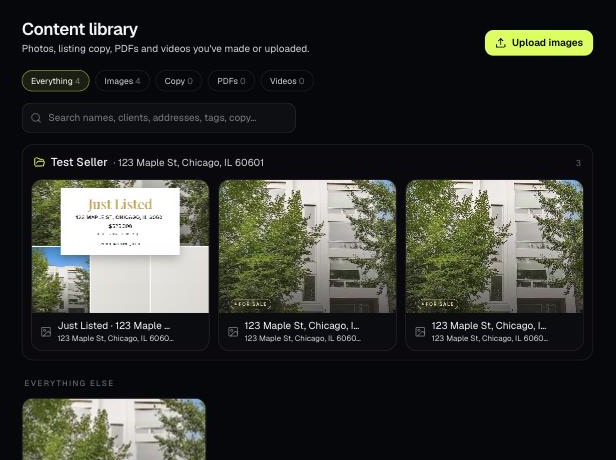
The Content library holds the photos, listing copy, PDFs and videos you've made or uploaded. Items tied to a client and property are grouped into folders.
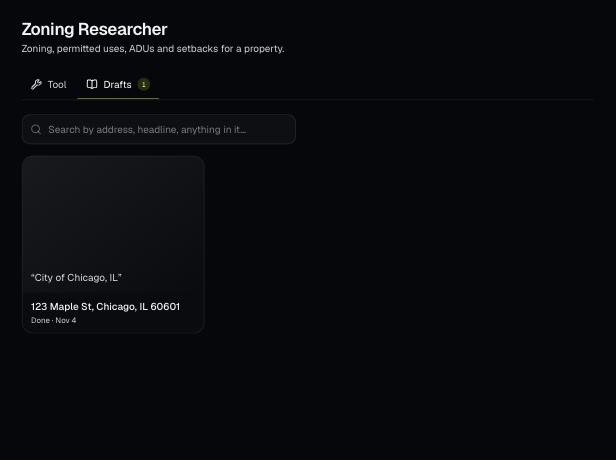
Tools save your work as you go, and AI tools keep running after you leave the page. Find both on the tool's Results tab and in the jobs indicator in the top bar.
Tools that act on a property use one menu to pick a client and then one of their properties. There's no address box to type into; you pick, or add, from the menu.