Permit History Researcher
Looks up permit history for a property from public records online, and flags listing features with no matching permit. A starting point to verify with the building department.
Open the Permit History ResearcherStep by step
- 1
Pick the property
Choose the client and property in the Client & property menu.
- 2
List the features
Optional. Type updates the listing mentions, like "finished basement, new roof 2021". These get checked against the permits found.
- 3
Click Search permits
It runs on the server in the background. You can leave or close the page, and the result saves to Results.
- 4
Read the results
Look at the renovation history, the permits found and any possible unpermitted work.
- 5
Download the PDF
Click Download PDF for a branded report. It saves to the Results tab.
What you get
Each permit links to where it was found when there's a source.
- Renovation history in a few sentences
- Permits found, with date, type, description and status
- Possible unpermitted work, why it matters and what to ask
- Questions for the seller
- Links to the local permit search and building department
- The sources the research found
Not every permit is online
Many places don't publish permits online. If nothing is found, that doesn't mean there were none. The building department has the full record.
Questions
Is this the official permit record?
No. It's AI research of what's published online. Confirm with the local building department before you rely on it.
Why did it find no permits?
Many cities and counties don't post permits online. Use the Where to check links to search the official records.
What does possible unpermitted work mean?
A feature you listed has no matching permit in what was found. It's a question to ask the seller, not a finding.
Related
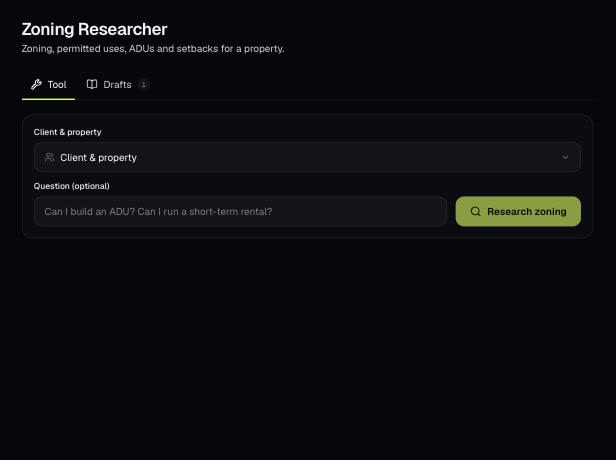
AI researches the zoning for a client's property: the district, ADU rules, setbacks, permitted uses and overlays, with links to verify. Ask your own question too.
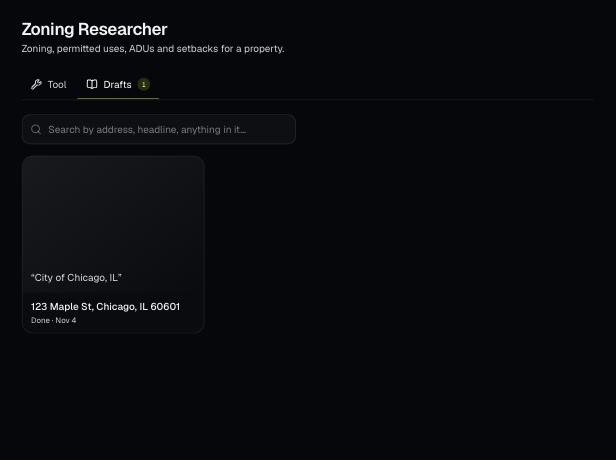
Tools save your work as you go, and AI tools keep running after you leave the page. Find both on the tool's Results tab and in the jobs indicator in the top bar.
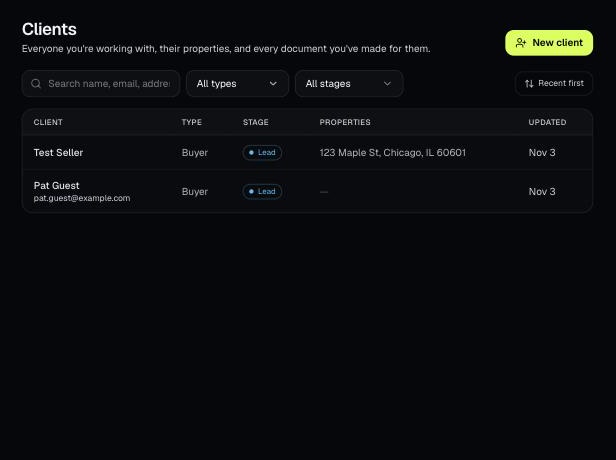
Tools that act on a property use one menu to pick a client and then one of their properties. There's no address box to type into; you pick, or add, from the menu.