Open House Check-in
Make an open house for a listing and put a QR code at the door. Every guest who checks in lands in your clients as a lead.
Open Open House Check-inStep by step
- 1
Make the open house
Click New open house. Pick the seller and the listing in the Client & property menu, then the date and the hours.
- 2
Get the QR code
Click Make the QR code. Print the sign, download the PNG, or copy the link.
- 3
Put it at the door
Guests scan the code with their phone camera. You can also open the check-in page on a tablet and hand it around.
- 4
Guests check in
They give their name and an email or phone. They can say what they're interested in, whether they have an agent, whether you can reach out, and add a question.
- 5
See who came
Open any open house in the list to see its guests. Click a name to open their client page.
How guests become clients
A new guest is added to your clients as a buyer in the lead stage, with a note saying which open house they came to.
If the email or phone matches a client you already have, the note is added to that client instead.
- Tagged "open house"
- Tagged "has an agent" if they said so
- Tagged "no outreach" if they didn't say you can reach out
The dashboard
The top shows open houses hosted, guests, how many became clients, and open houses in the last 30 days. Upcoming and past open houses are listed separately, and today's is marked.
Questions
Do I need to type the address?
No. The address comes from the property you pick in the Client & property menu. Add the property there first if it's new.
What if a guest asks not to be contacted?
They're still added to your clients, tagged "no outreach", and the note says they asked not to be contacted. Respect that.
If I delete an open house, do I lose the guests?
No. Guests who already became clients stay in your clients.
Can I get the QR code again later?
Yes. Click QR & sign on any open house in the list.
Related
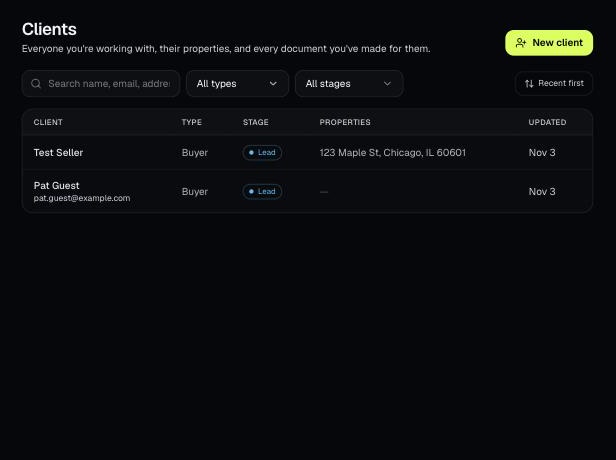
Clients holds everyone you work with, their properties, and every document you've made for them. Tools open prefilled from a client's property.
Tools that act on a property use one menu to pick a client and then one of their properties. There's no address box to type into; you pick, or add, from the menu.
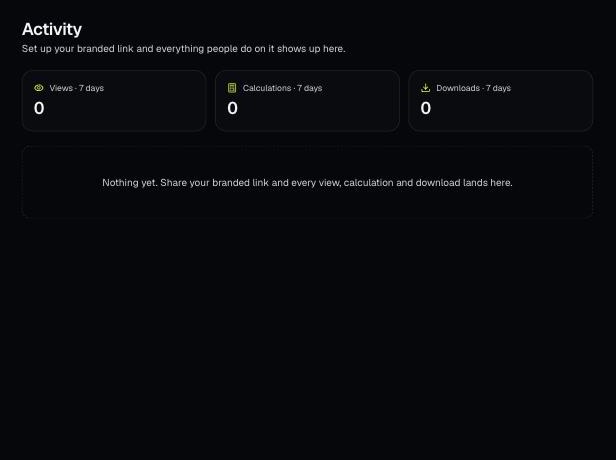
Activity shows what people do on your branded page: every view, calculation and download, newest first. Downloads have a View PDF button.