HOA Document Summarizer
Upload up to five PDFs from the HOA packet and AI pulls out the fees, rules, reserves, red flags and questions to ask. Download it as a branded PDF.
Open the HOA SummarizerStep by step
- 1
Pick the client and property
Choose them in the Client & property menu. This is optional, but it puts their name and the address on the PDF.
- 2
Add the PDFs
Click Add PDFs or drag them in. Bylaws, CC&Rs, budget, reserve study, minutes. Up to five files, 19 MB each.
- 3
Click Summarize
Reading takes a minute or two. It runs on the server, so you can leave or close the page. The result saves to Results.
- 4
Read the summary
Check the red flags first, then fees, finances and restrictions. Anything not found says "Not in the documents".
- 5
Download or copy
Click Download PDF for a branded summary. Copy the questions to send to the HOA.
What you get
A short summary, then each part in its own card.
- Red flags rated High, Medium or Low, with the document and page
- Fees: dues, transfer fee, capital contribution, special assessments
- Finances: reserve balance, percent funded, annual budget
- Restrictions: rentals, short-term rentals, pets, parking, exterior changes, signs
- Questions to ask the HOA
Check the documents
This is an AI summary of what you uploaded. Confirm anything important in the documents themselves. It is not legal advice.
Questions
Can I close the page while it reads?
Yes. It runs in the background on the server. The jobs indicator in the top bar shows it, and the result saves to Results.
My PDF won't upload. Why?
Each file must be a PDF under 19 MB. Export a smaller copy from the source and try again.
Can I add more documents later?
Add the files and click Summarize again. It reads all the files you've added together.
Where's the PDF I downloaded?
On the Results tab of the tool page.
Related
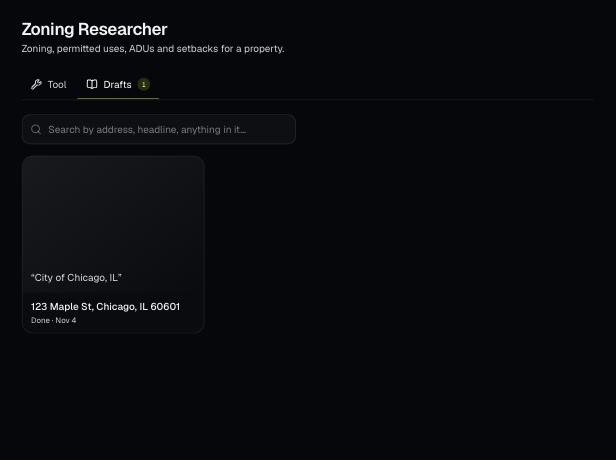
Tools save your work as you go, and AI tools keep running after you leave the page. Find both on the tool's Results tab and in the jobs indicator in the top bar.
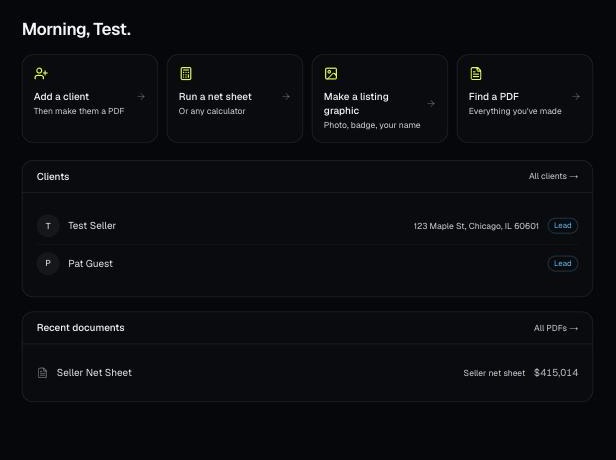
Every PDF you download is saved, so you can preview it, download it again with your current brand, or reopen it with the same numbers.
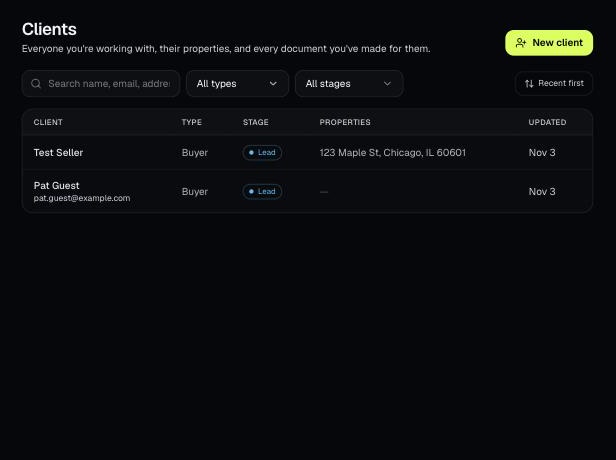
Tools that act on a property use one menu to pick a client and then one of their properties. There's no address box to type into; you pick, or add, from the menu.